Virtual Key Pairing

Tesla virtual key pairing for VoltEdge, from QR scan to VIN-aware setup.

Use this guide to pair the VoltEdge virtual key in the Tesla app, confirm the right vehicle is in scope, and remove the most common blockers before live commands are tested.

Authorize Tesla first

Start from VoltEdge and complete Tesla sign-in before attempting QR pairing so Tesla already recognizes the app connection.

Use the right phone

Open the QR flow on the phone that already has the Tesla app installed and signed in, otherwise the pairing handoff will break.

Pair from the QR or deep link

Tesla will show the `voltedgesystem.com` key request in-app, then guide the final pairing confirmation and vehicle acceptance steps.

Stay VIN-aware

Multi-vehicle accounts should pair the intended VIN first and then confirm the active vehicle in VoltEdge before commands are tested.

Pairing flow

The cleanest path from Tesla authorization to a working virtual key.

1. Start from VoltEdge and complete Tesla sign-in

The cleanest pairing flow begins after Tesla authorization succeeds. That way the key pairing request arrives in the correct app and account context instead of failing partway through setup.

2. Scan the QR code or open the pairing link

Use the device that already has the Tesla app installed. Tesla will open the pairing request for `voltedgesystem.com`, display the account and vehicle context, and begin the confirmation steps.

3. Use a VIN-specific link when one car matters most

If the account has more than one vehicle, append `?vin=YOUR_VIN` to the pairing link so Tesla targets the correct car from the start. Repeat the flow for any other vehicle that also needs signed commands.

4. Return to VoltEdge and confirm the selected vehicle

After pairing succeeds, go back into the dashboard, explorer, or owner workspace and confirm that the active vehicle matches the car that was just paired. That keeps later commands and VIN-aware routes aligned.

5. Test a simple read or low-risk action first

Before using heavier command flows, confirm that vehicle context, basic telemetry, or a low-risk action works as expected. This helps separate pairing success from a selected-vehicle mismatch or a different account-level issue.

Pairing links

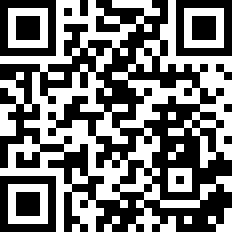
Scan the QR code or use the Tesla deep link for `voltedgesystem.com`.

VoltEdge virtual key pairing QR code for Tesla app

Standard pairing link

https://tesla.com/_ak/voltedgesystem.com

VIN-specific pairing link

https://tesla.com/_ak/voltedgesystem.com?vin=YOUR_VIN

The Tesla app should already be signed in on the phone used for pairing.
The pairing request should identify `voltedgesystem.com` as the key owner.
The VIN-aware link should be used when more than one vehicle is on the account.
VoltEdge should show the intended car as the active vehicle after pairing completes.

Tesla sign-in worked, but commands still fail

This usually means the account is connected but the virtual key was never paired to the vehicle. Signed commands and some realtime interactions depend on the key being present on the car itself.

The wrong vehicle responds in a multi-car account

That typically points to either the wrong VIN being paired or the wrong active vehicle still being selected in VoltEdge. Pairing and selection should always be checked together.

The QR scan opens Tesla, but the flow stops midway

When the flow stops after the app opens, the most common causes are a stale Tesla session on the phone, the wrong phone being used, or a vehicle that was not targeted correctly in a multi-car account.

Pairing is complete, but the workspace still looks unchanged

Refresh the live workspace and confirm the active vehicle. The new pairing state may be correct even if the current page is still showing an older selection or stale vehicle context.